Stream from your phone with Aperture Live
For production teams and the operators who stream on site. Scan the QR code from your streaming platform, check the profile, and go live.
Overview
Aperture Live turns any phone into a broadcast studio that anyone can run. Your platform’s administrator sets up the livestream in advance, including video/audio settings, optimal broadcast protocols, and even overlays like scoreboards and sponsor banners. And since graphics are applied by the platform, you can go live from your phone without any video production experience, extra equipment, or broadcasting software.
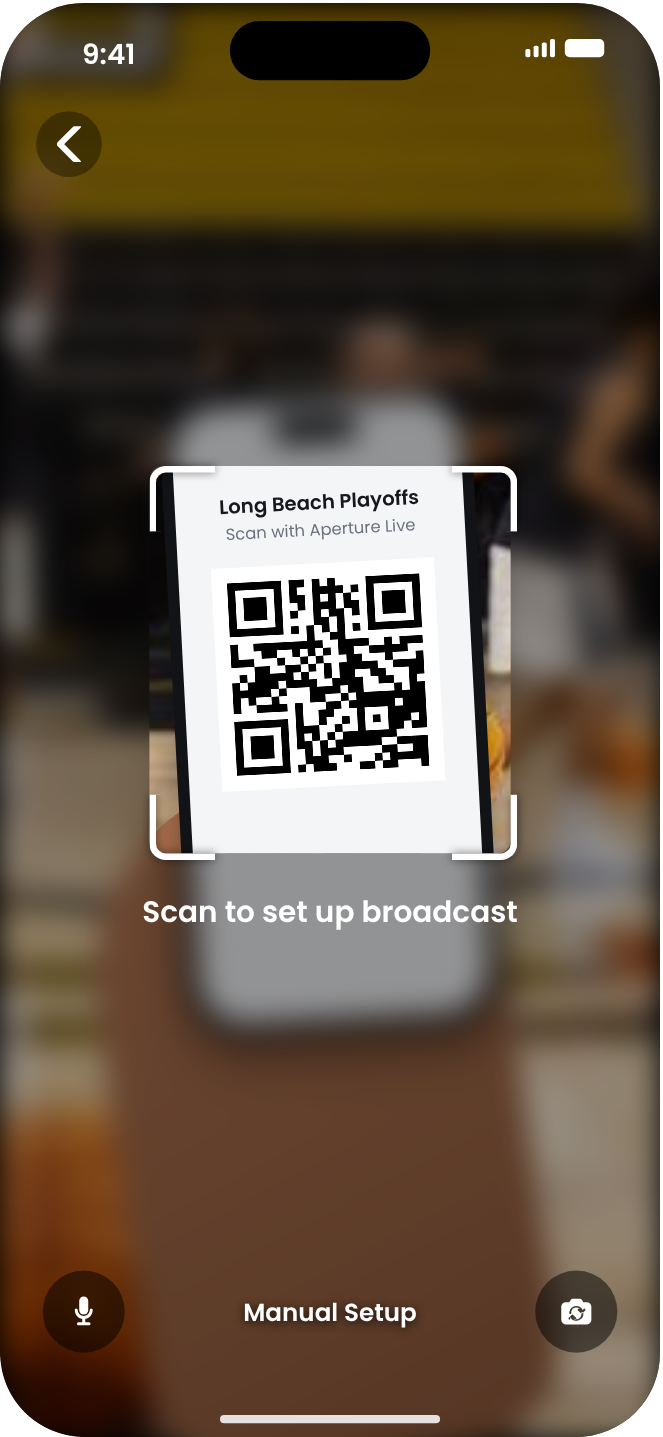
Open Aperture Live and scan the code your administrator shared.
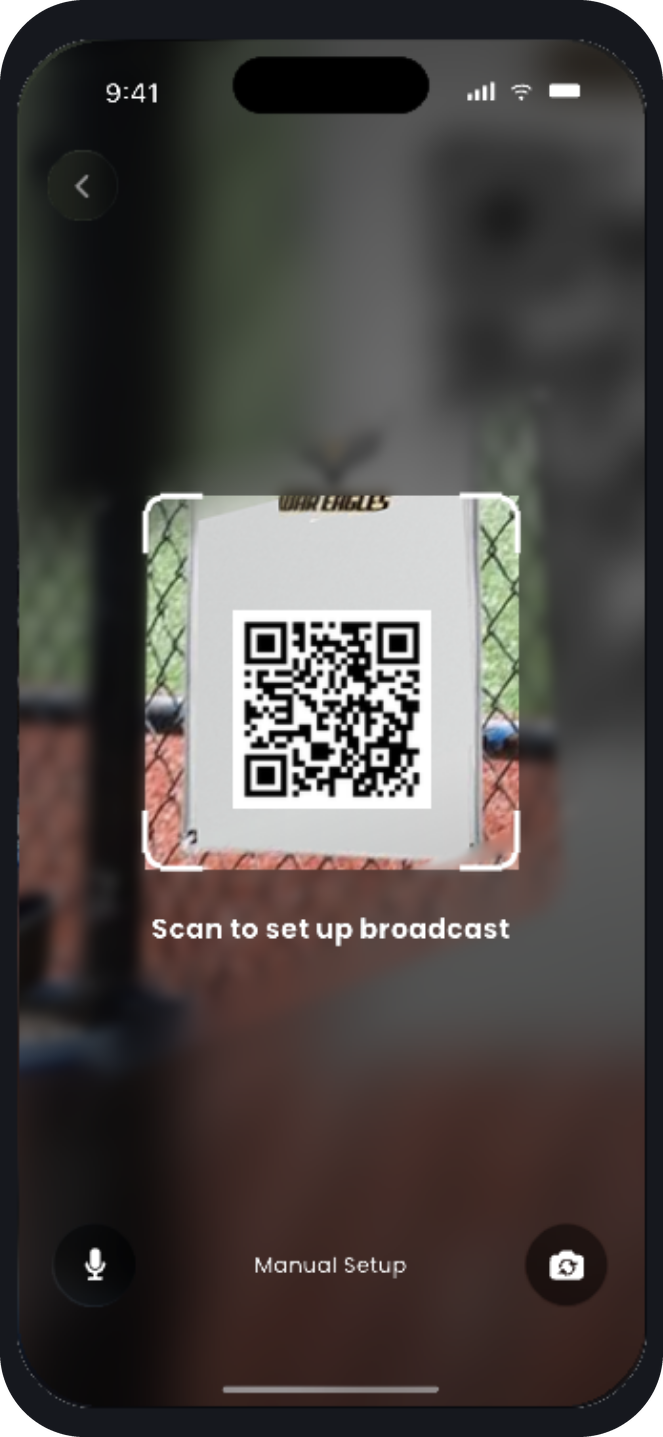
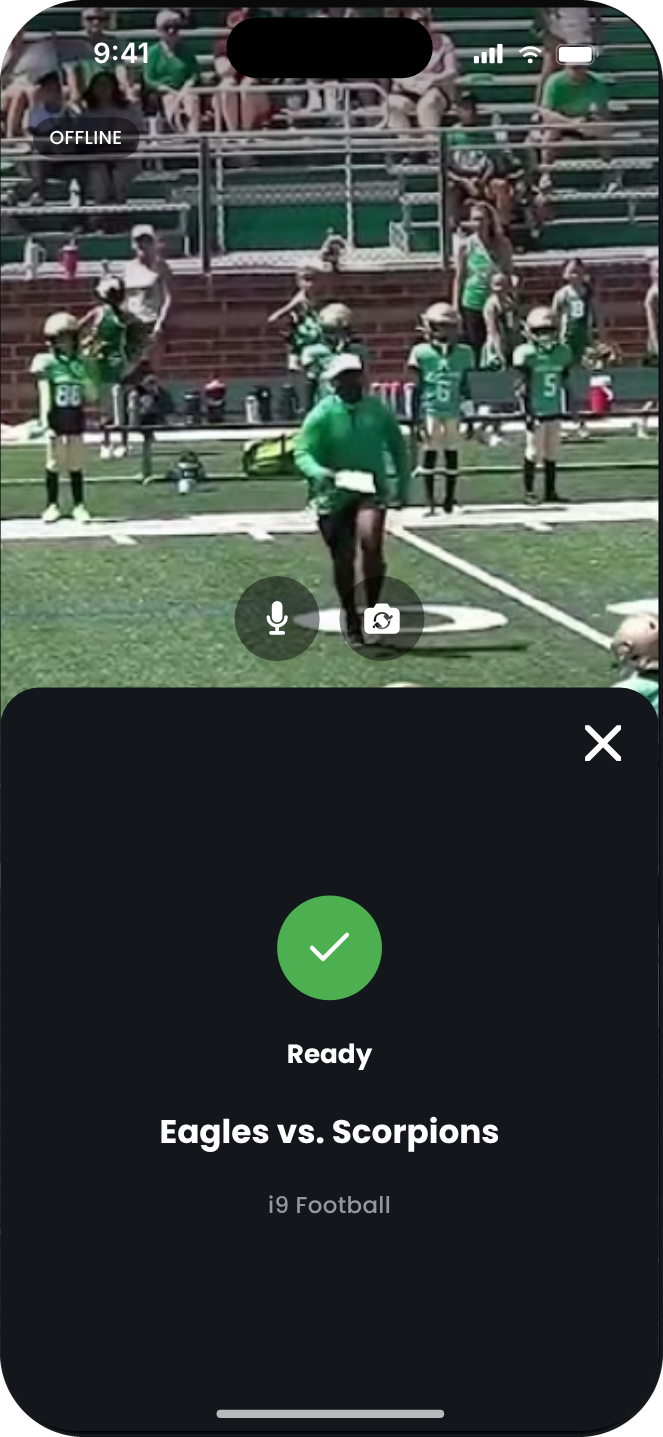
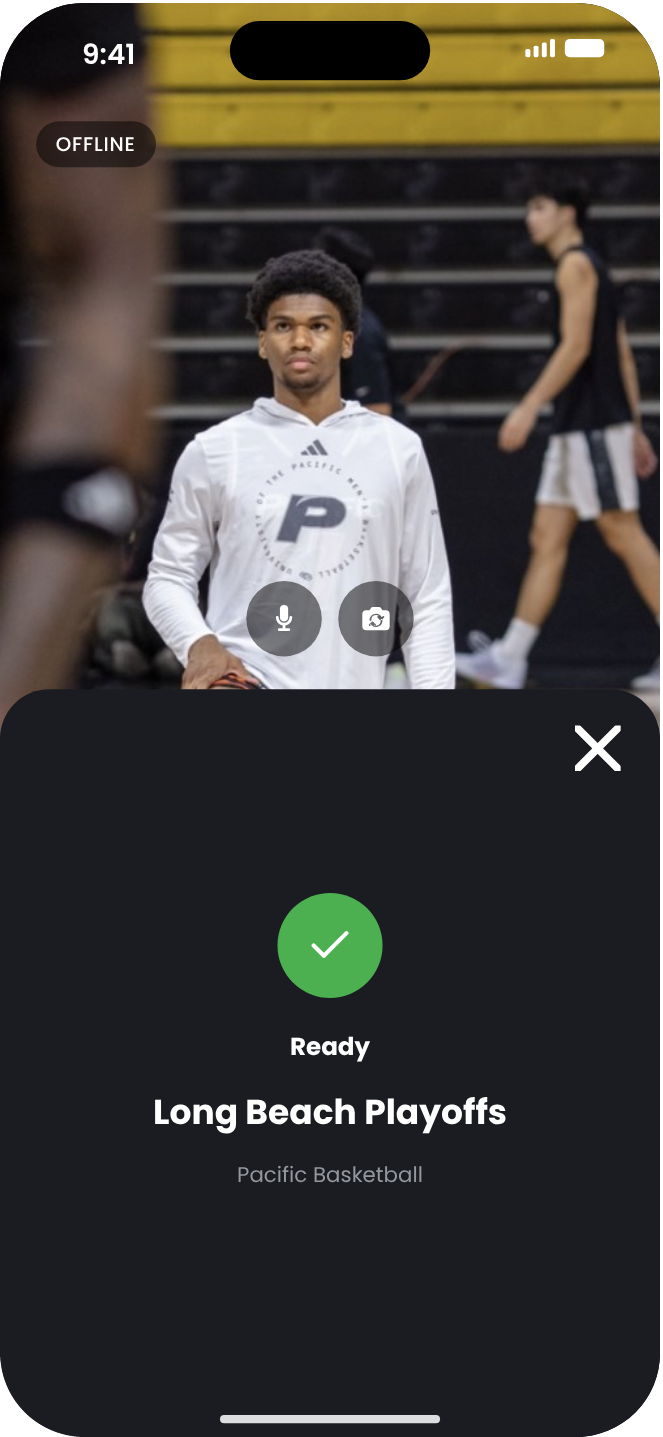
The app shows the stream it loaded. Settings and overlays come from the QR code, so there is nothing to enter.
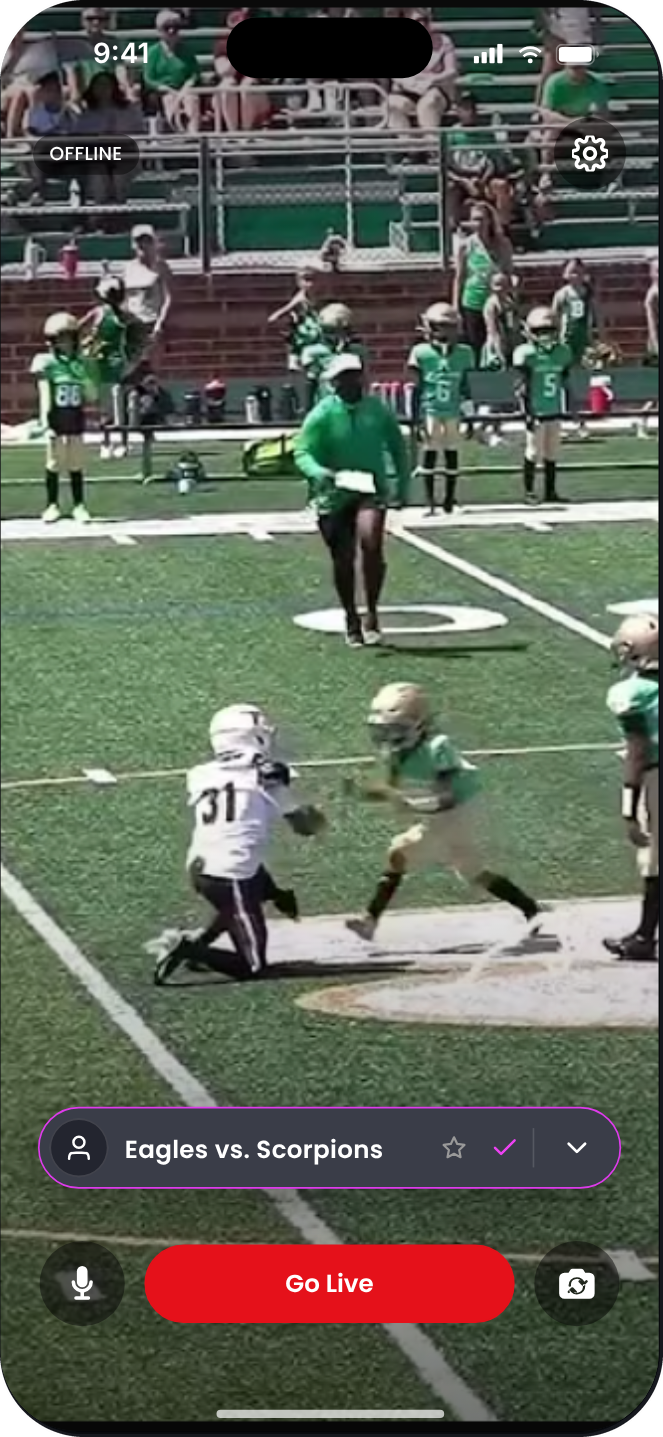
Tap Go Live and your phone starts streaming.
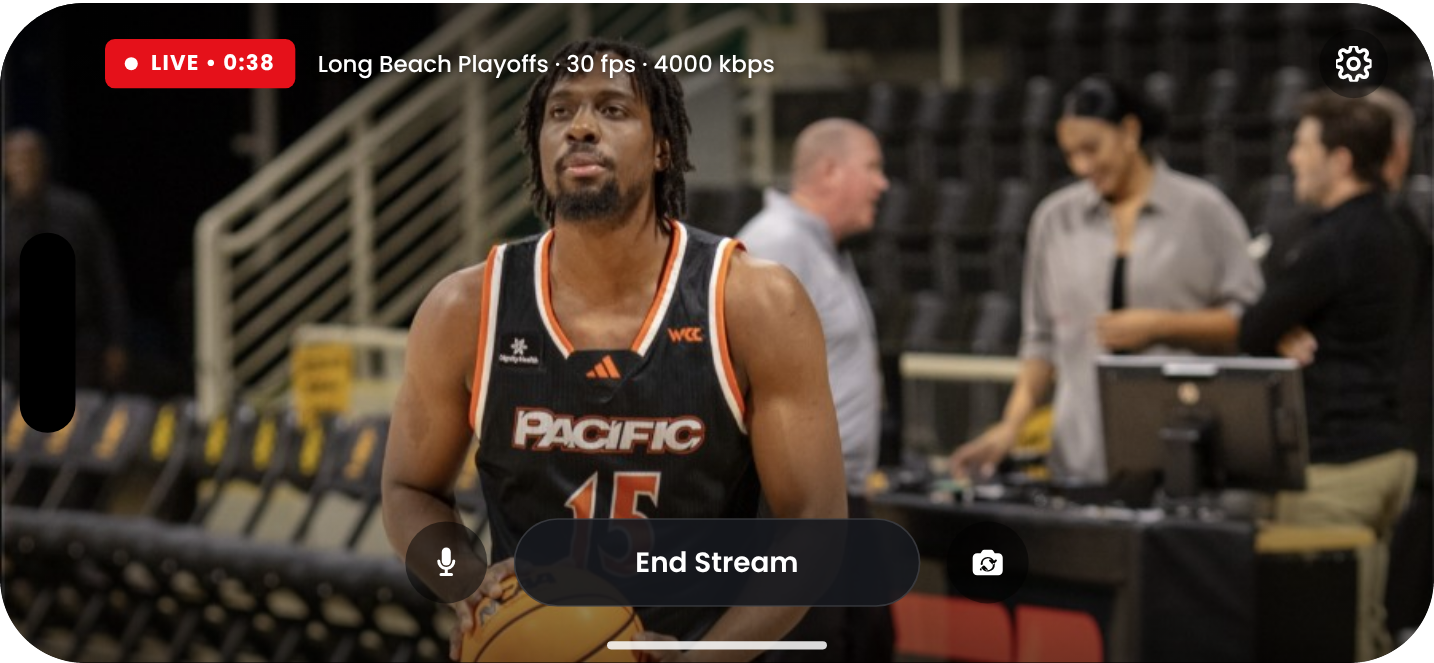
The camera view, with the live timer and the End Stream button.
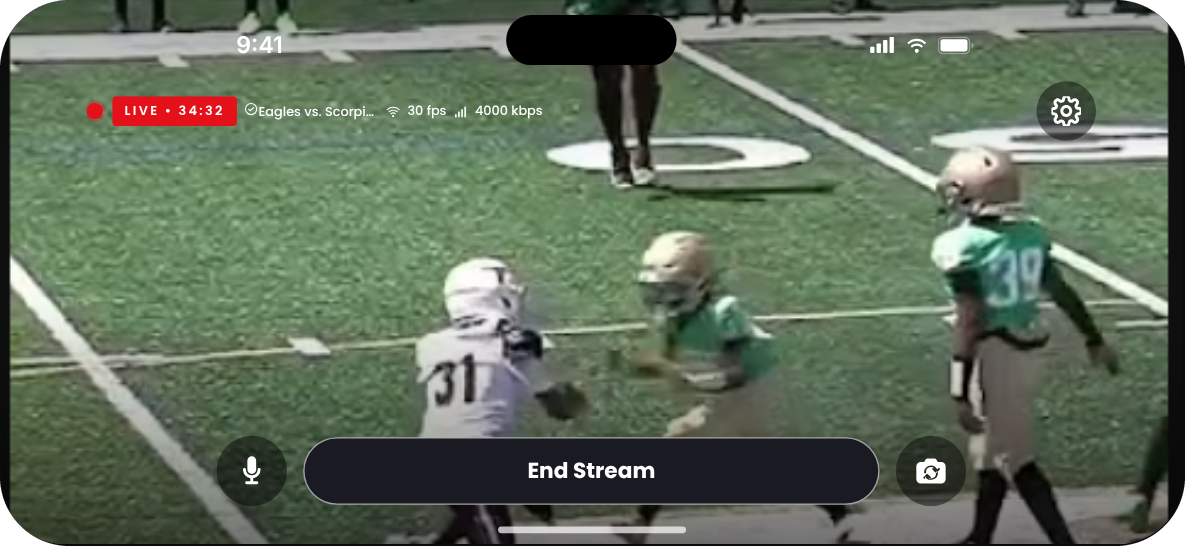
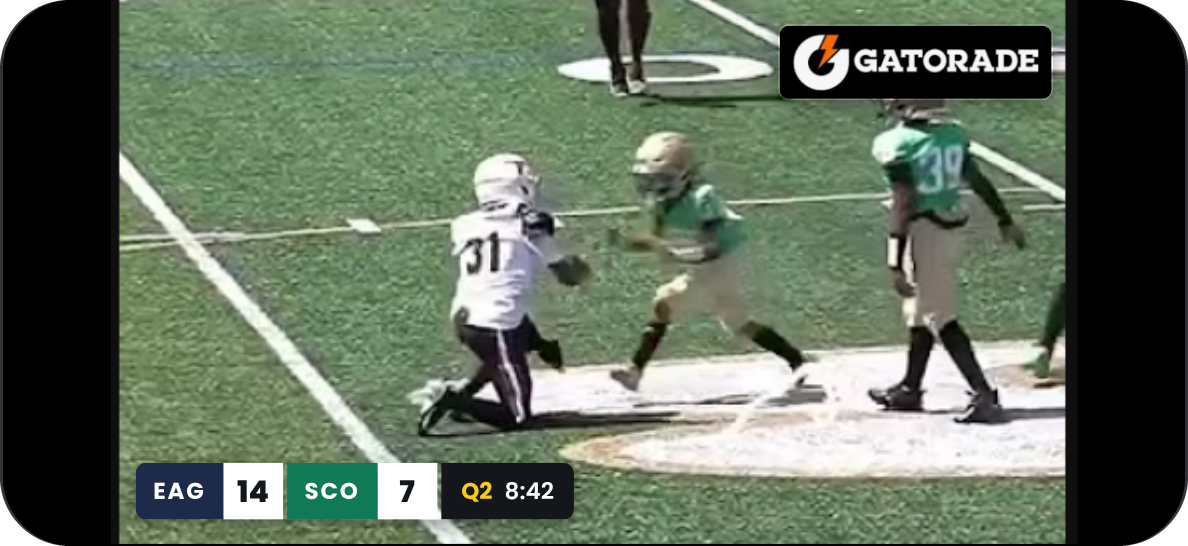
Viewers see the overlays your administrator set up, like a scoreboard or sponsor banner. You won’t see them on your phone.
Install the app and allow access
Do this before event day, so you aren’t waiting on a download at the venue. Download Aperture Live from the App Store or Google Play.
Then open the app once. On first launch, it asks for camera and microphone access. Tap Allow for both. If either is turned off, Home shows a note with a link to Settings. You can still go live, but the stream will have no video or no audio until you allow access.
Test your connection
A livestream is only as strong as the connection behind it. When you arrive at the venue, check that the network where you’ll film can keep up with a live video stream.
- Stand where you’ll film, such as the sideline or the press box, and connect to the Wi-Fi or cellular network you’ll use during the event.
- Open a speed test app or website, such as Speedtest by Ookla.
- Run the test and look at the upload speed. Your phone sends video up to the platform, so upload speed matters most, not download.
- RecommendedBefore the event, send your upload speed and the network you tested on (Wi-Fi or cellular) to your platform’s administrator. It helps them choose the video settings for your stream before they create your QR code.
Tip: Run the test again close to event time. Cellular networks slow down when the stands fill up.
Scan the QR code
You should receive a QR code from your platform’s administrator. It might be printed on a sign at the venue or sent via text or email.
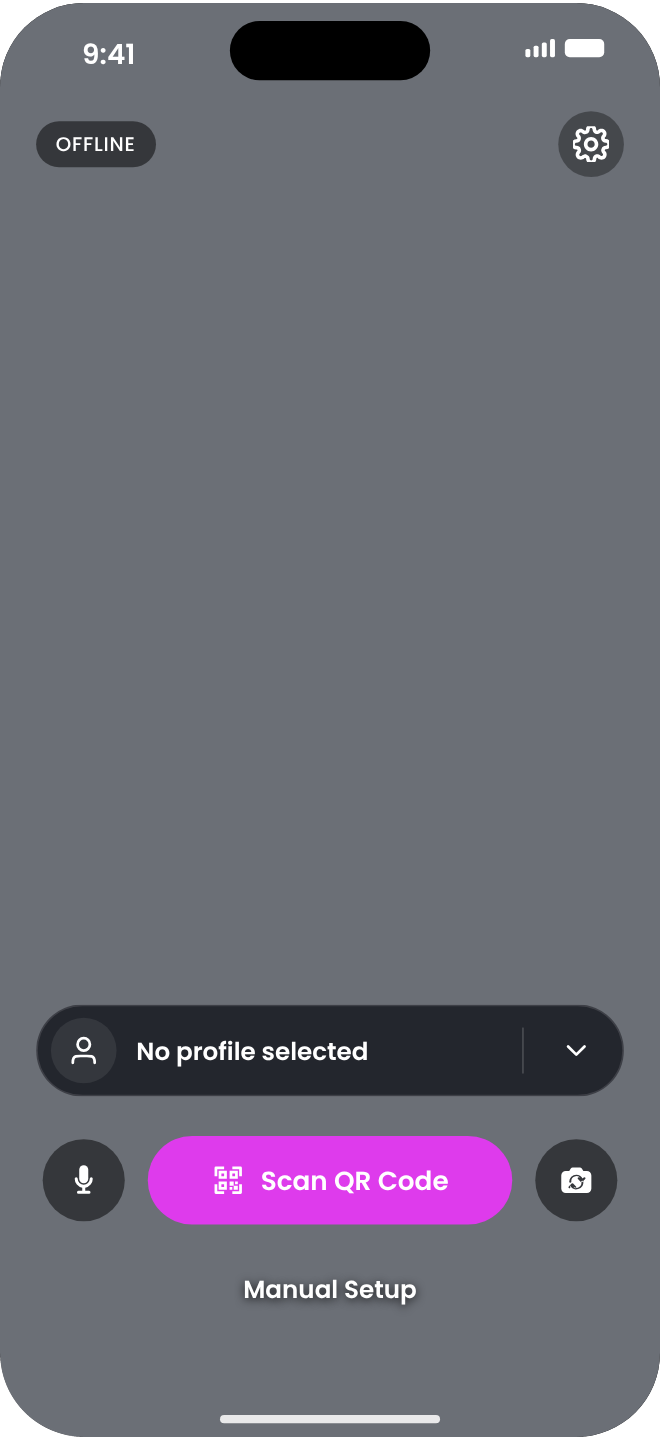
- From the Home screen in the app, tap Scan QR Code.
- Point the camera at the code.
- If your administrator set up the code with a PIN, enter the PIN they gave you.
- The app reads it and creates a profile with the destination, stream key, and settings for your stream. You are ready to stream.
- Check that the stream name and platform match your event.
If the code can’t be read, you’ll see QR Code Not Recognized. If it has run out, you’ll see QR Code Expired. Either way, you stay on the Scan screen and can try another code.
Tip: No QR code? Tap Manual Setup and enter the destination URL and stream key to create a Profile manually.
Good to know: Scanning a new code for the same stream updates the profile instead of creating a duplicate.
Set up your shot
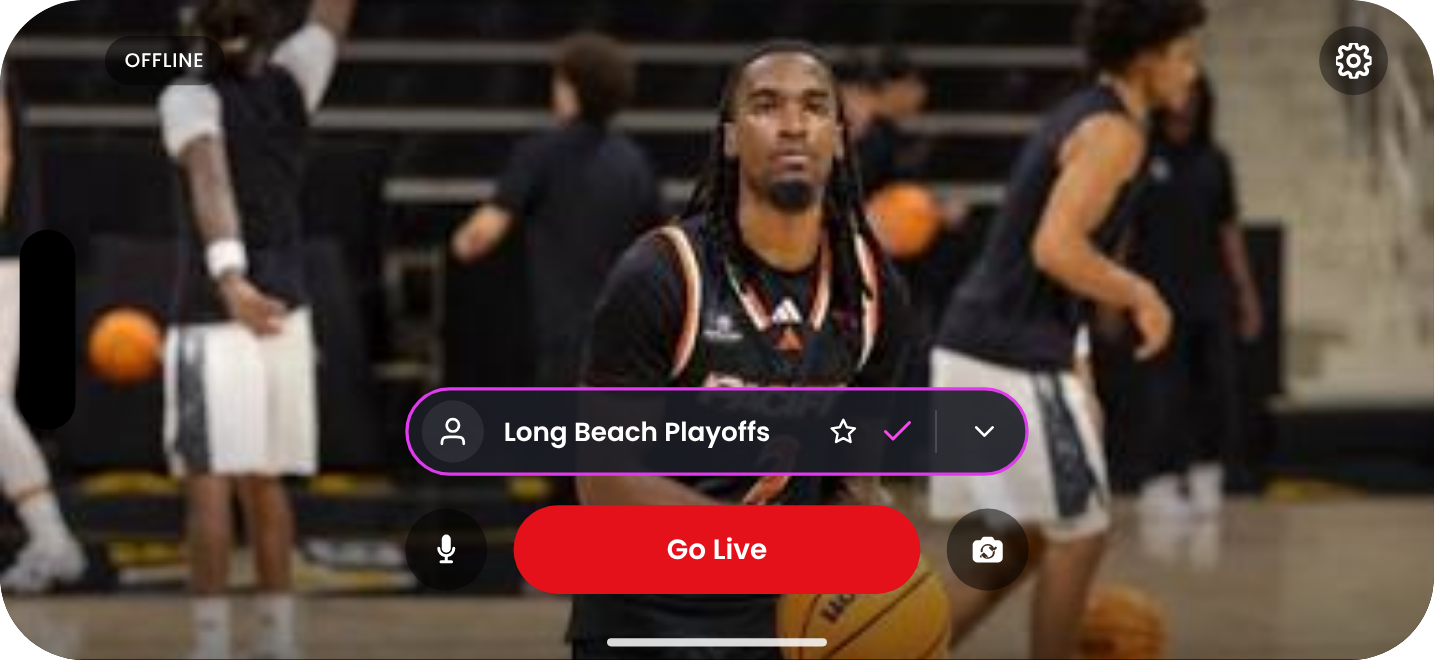
- Make sure your profile is selected. The pill above Go Live should display the profile name with a magenta ring and check.
- Hold the phone steady, or put it on a tripod or mount.
- Turn the phone to the orientation your stream uses, usually landscape.
- Frame the action. The camera preview on Home shows what viewers will see. Scoreboards and sponsor banners are added by the platform, so you won’t see them on your phone.
Good to know: The stream locks to the orientation your phone is in when you go live. If you turn the phone the other way during the stream, the app shows Rotate your phone. Turn it back to match.
Go live
- Tap Go Live.
- A 3-2-1 countdown runs while the app connects. Tap Cancel to stop before anything is sent.
- When the countdown ends, the chip changes from OFFLINE to LIVE. Your broadcast is live. A timer displays the time elapsed since you started streaming.
- When the event is over, tap End Stream and confirm.
Keep or delete the profile
When the stream is over, you can reuse this profile or delete it.
Streaming this event again? Make it your favorite
The favorite is the profile the app opens in, so the next time you launch Aperture Live, it’s already selected and Go Live is ready.
- Tap the star on the profile pill.
- A filled magenta star marks the favorite.
Only one profile can be the favorite. Starring a new one replaces the old one. Tap the star again to clear it.
One-time event? Delete the profile
If you won’t stream this event again, delete its profile so no one goes live to it by mistake later.
- Tap the arrow on the profile pill, then tap Manage profiles.
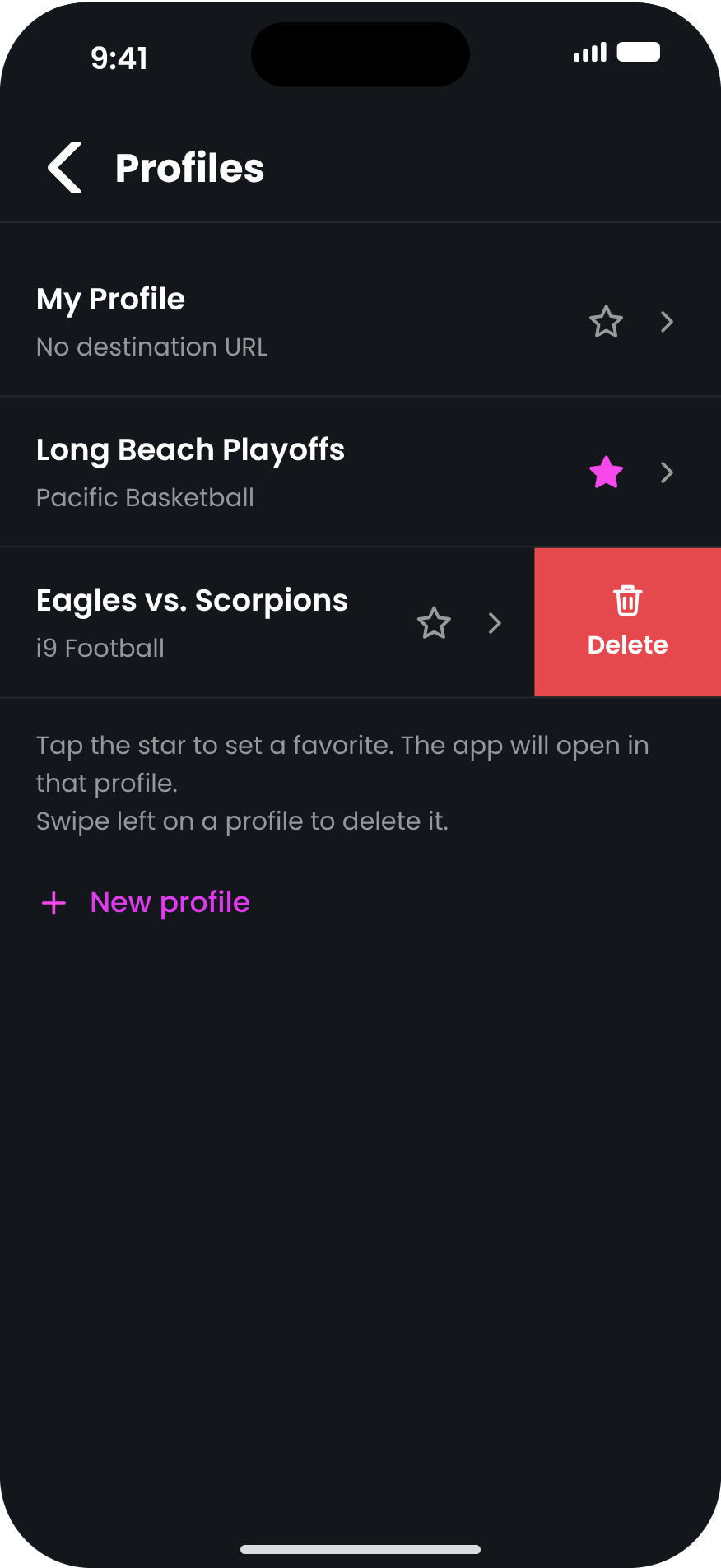
- Swipe left on the profile.
- Tap Delete.
If the deleted profile was your favorite, the favorite is cleared too.
Managing profiles
A profile holds everything one stream needs: its name, platform, destination, stream key, and video and audio settings. Each event gets its own profile, so a phone can move between events without anyone re-entering settings.
Rescanning a code with the same destination and stream key updates that profile. A code with a different stream key creates a new profile.
Troubleshooting
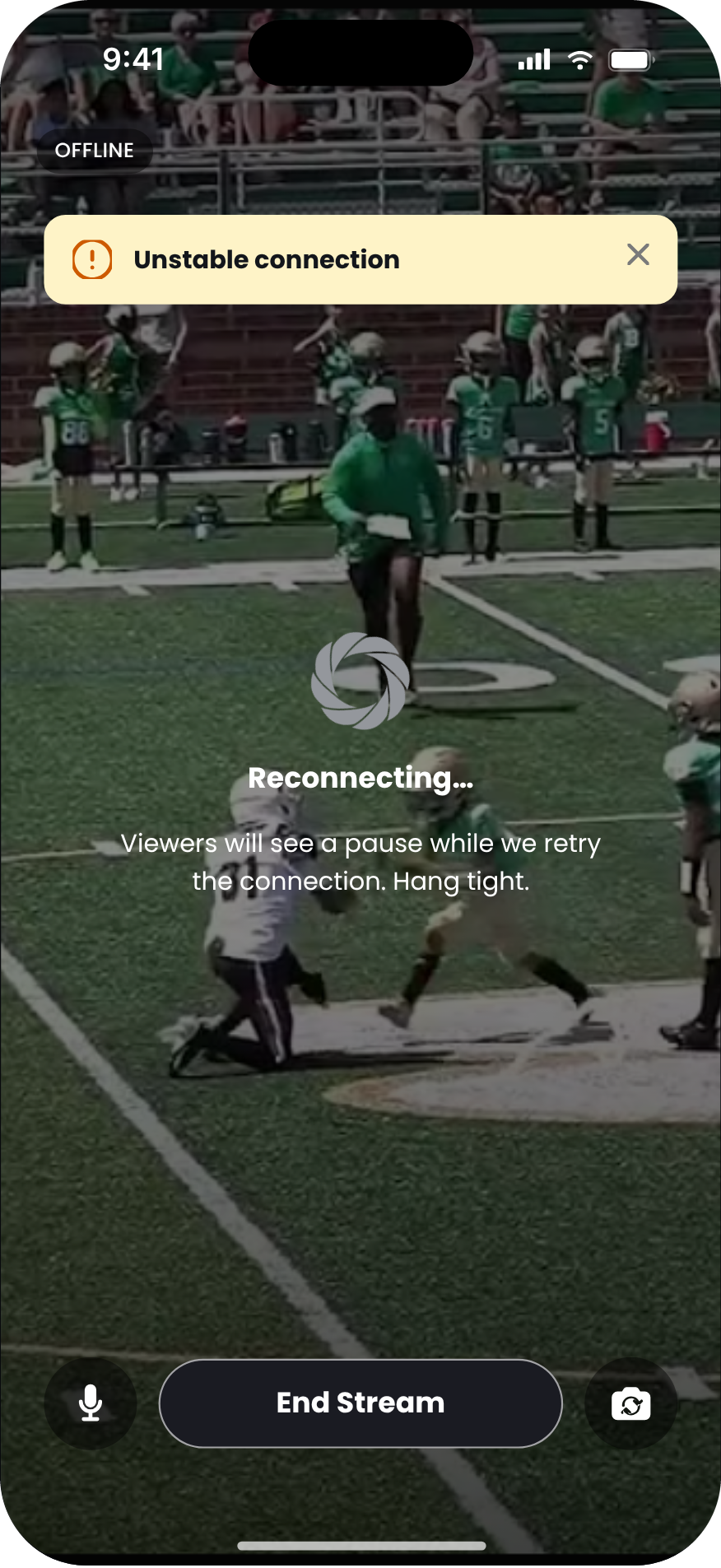
Messages appear as a banner at the top of the screen. Close any banner with ×.